Task 1: Introduction to Windows Forensics
Introduction to Computer Forensics for Windows:
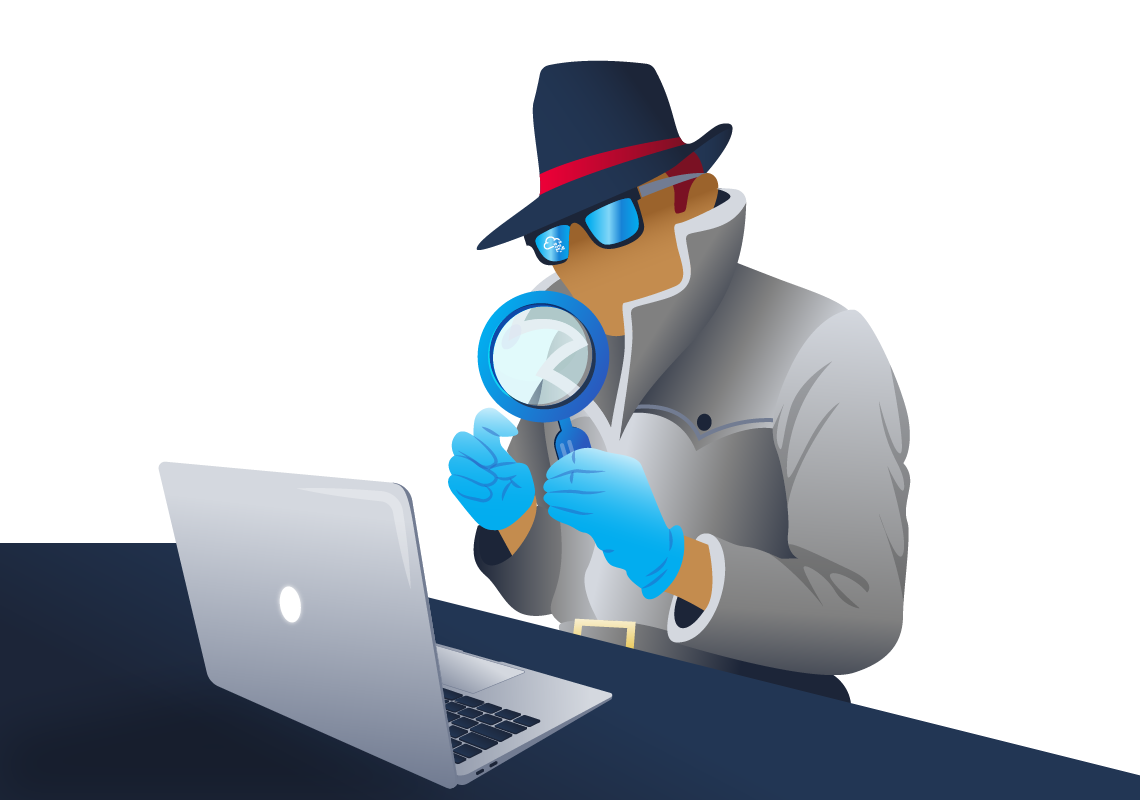
Computer forensics is an essential field of cyber security that involves gathering evidence of activities performed on computers. It is a part of the wider Digital Forensics field, which deals with forensic analysis of all types of digital devices, including recovering, examining, and analyzing data found in digital devices. The applications of digital and computer forensics are wide-ranging, from the legal sphere, where it is used to support or refute a hypothesis in a civil or criminal case, to the private sphere, where it helps in internal corporate investigations and incident and intrusion analysis.
A perfect example of Digital Forensics solving a criminal case is the BTK serial killer case. This case had gone cold for more than a decade when the killer started taunting the police by sending letters. The case took a major turn when he sent a floppy disk to a local news station that was later taken to into evidence by the police. The police were able to recover a deleted word document on the drive, and using the metadata and some other evidence, they pinpointed and arrested him.
Microsoft Windows is by large the most used Desktop Operating System right now. Private users and Enterprises prefer it, and it currently holds roughly 80% of the Desktop market share. This means that it is important to know how to perform forensic analysis on Microsoft Windows for someone interested in Digital Forensics. In this module, we will learn about the different ways we can gather forensic data from the Windows Registry and make conclusions about the activity performed on a Windows system based on this data.
Forensic Artifacts:
When performing forensic analysis, you will often hear the word 'artifact'. Forensic artifacts are essential pieces of information that provide evidence of human activity. For example, during the investigation of a crime scene, fingerprints, a broken button of a shirt or coat, the tools used to perform the crime are all considered forensic artifacts. All of these artifacts are combined to recreate the story of how the crime was committed.
In computer forensics, forensic artifacts can be small footprints of activity left on the computer system. On a Windows system, a person's actions can be traced back quite accurately using computer forensics because of the various artifacts a Windows system creates for a given activity. These artifacts often reside in locations 'normal' users won't typically venture to. For our purposes, these artifacts can be analyzed to provide the trial of activity for an investigation.
So is my computer spying on me?
What do you think?
A Windows system keeps track of a lot of activity performed by a user. But is all that tracking for malicious purposes, or is there another reason for that? As we'll see in this room, the filesystem components that forensic experts deem artifacts primarily originated from Microsoft's efforts to improve the user's experience.
Assuming the same build of Windows is installed on a system, excluding the actions taken during installation, the out-of-the-box experience is similar for all users. However, with time, each user personalizes their computer according to their preferences. These preferences include the Desktop layout and icons, the bookmarks in the internet browser, the name of the user, installing of different applications, and logging in to different accounts for each of these applications and other accounts using the internet browser.
Windows saves these preferences to make your computer more personalized. However, forensic investigators use these preferences as artifacts to identify the activity performed on a system. So while your computer might be spying on you, it is not for the explicit reason of spying, instead to make it more pleasant to use the computer according to your taste. But that same information is used by forensic investigators to perform forensic analysis. As we move through this room, we'll see that Windows stores these artifacts in different locations throughout the file system such as in the registry, a user's profile directory, in application-specific files, etc.
In the next task, we will learn about the Windows Registry and how it can help us in forensic analysis of a Windows system.
Note: Except for Task #10, which has a VM attached, the questions for all the upcoming tasks can be answered using the concepts and evidence presented in the text and images.
Answer the questions below
- What is the most used Desktop Operating System right now?



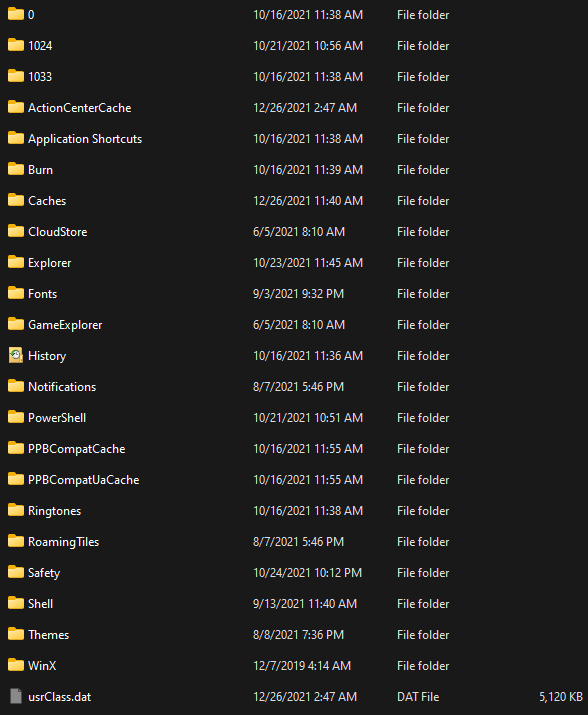
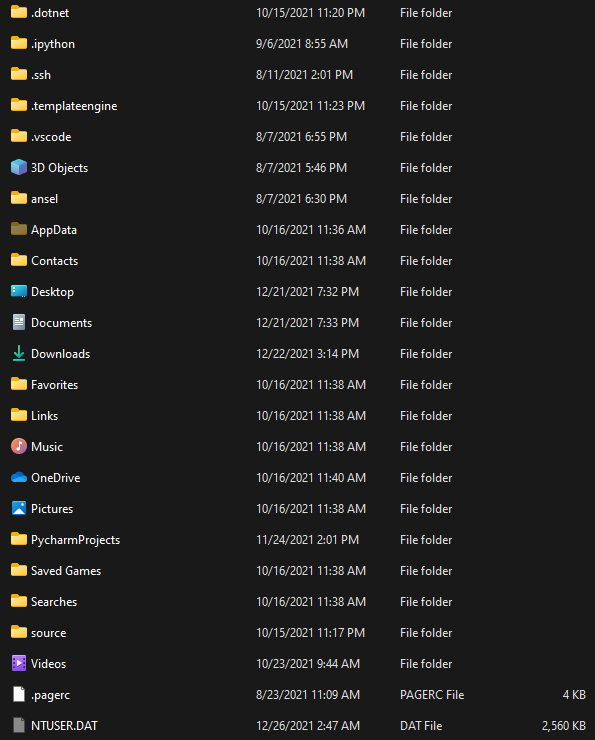
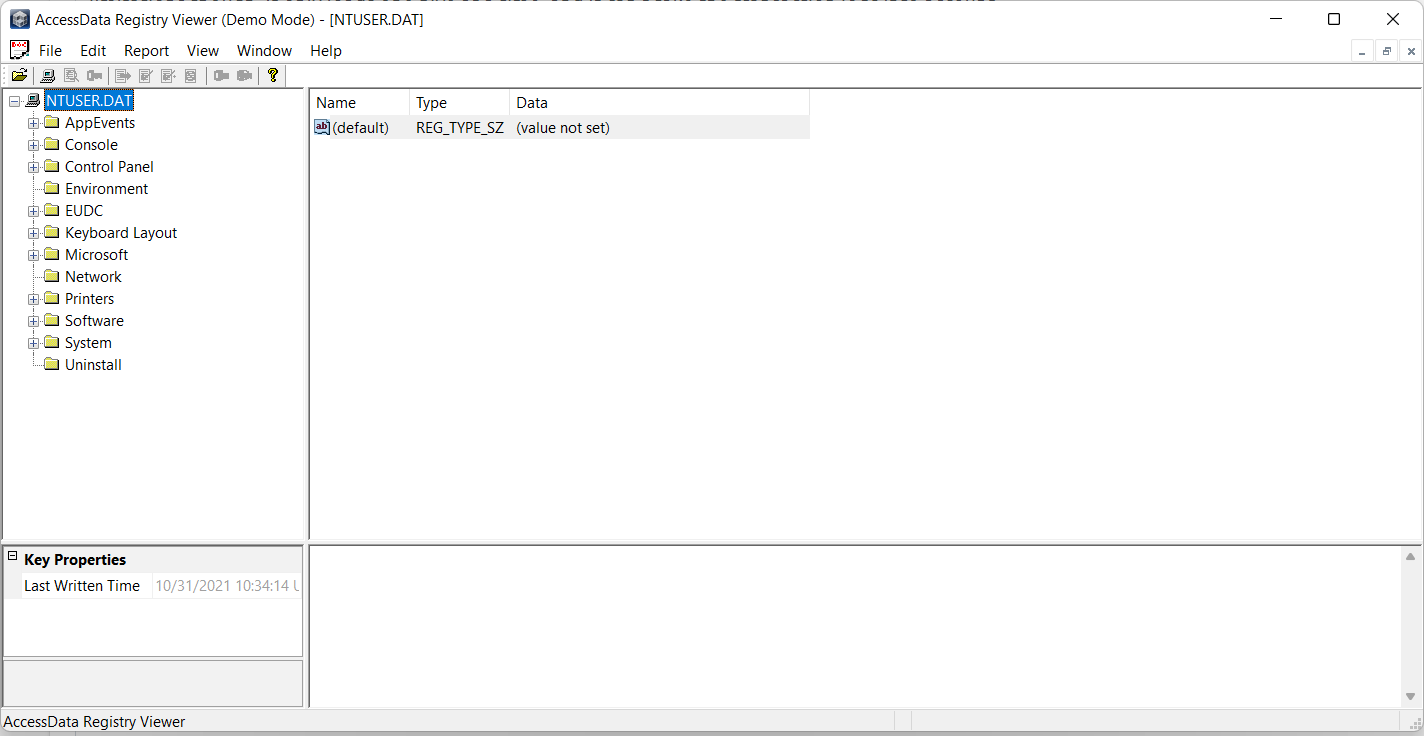
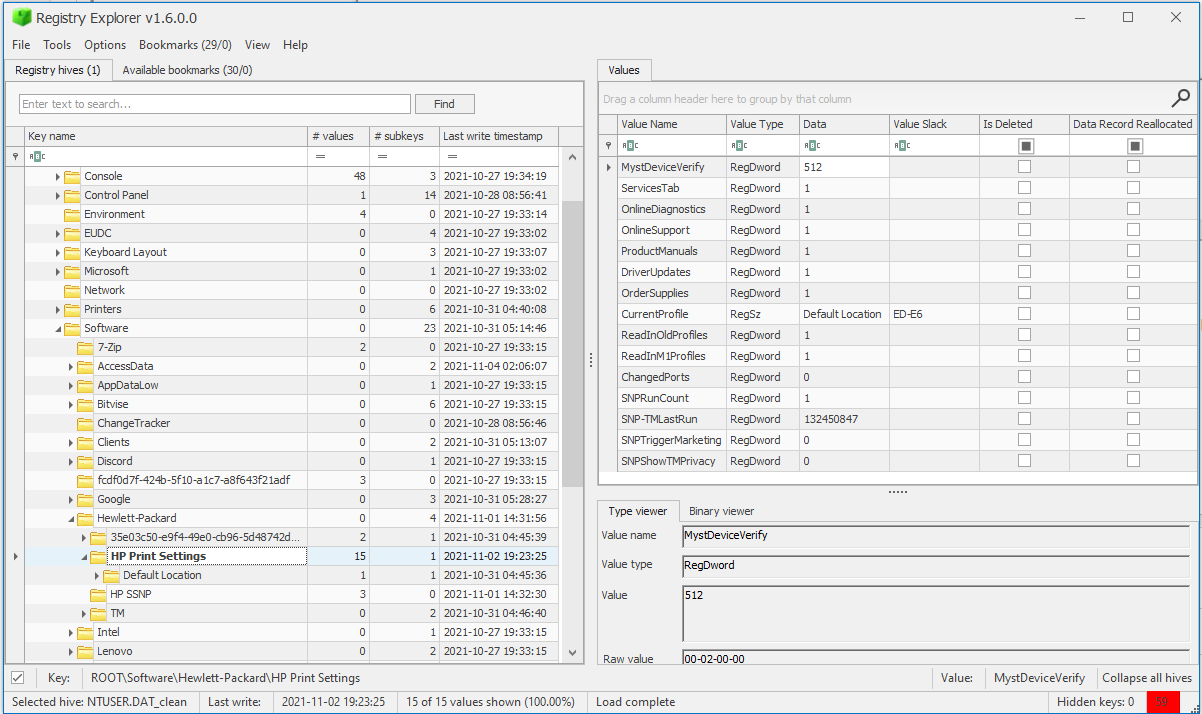
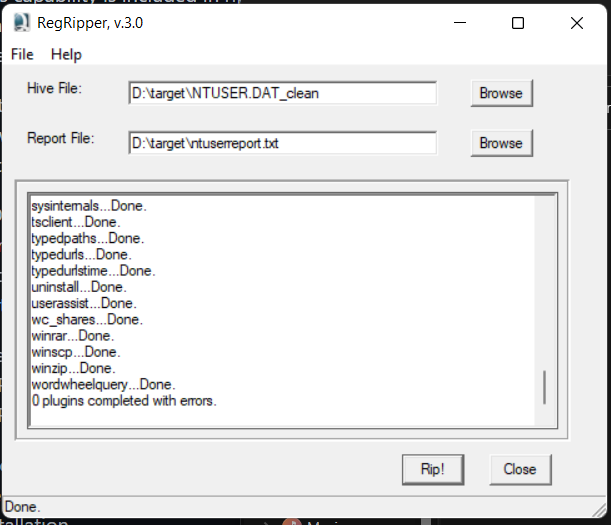
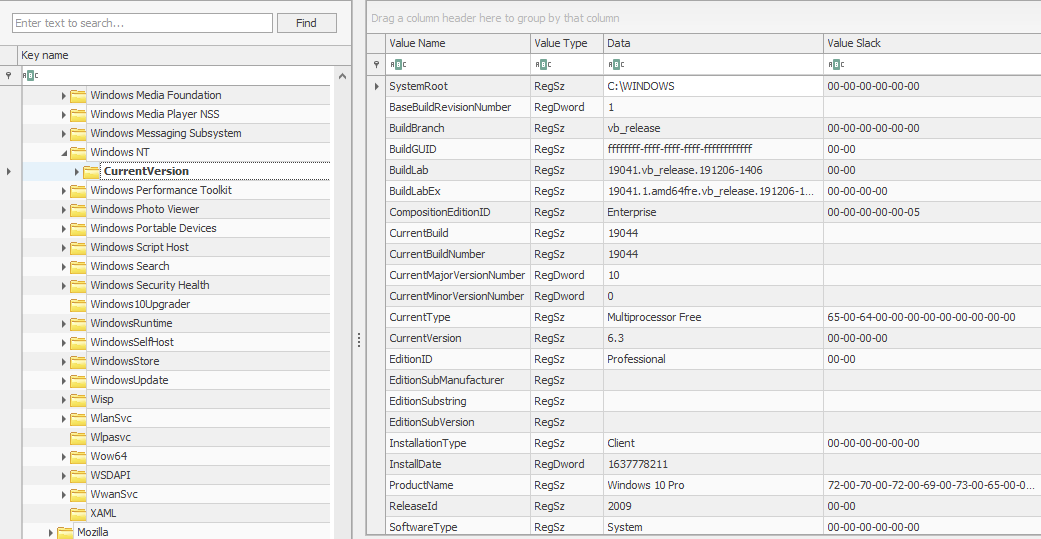
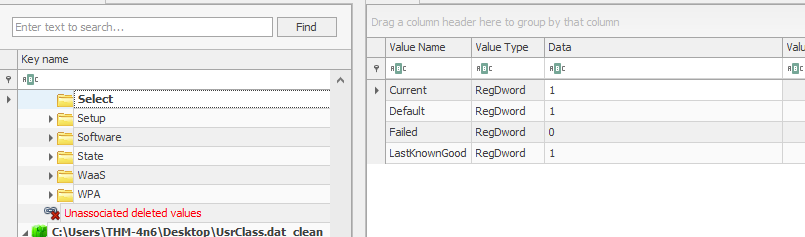

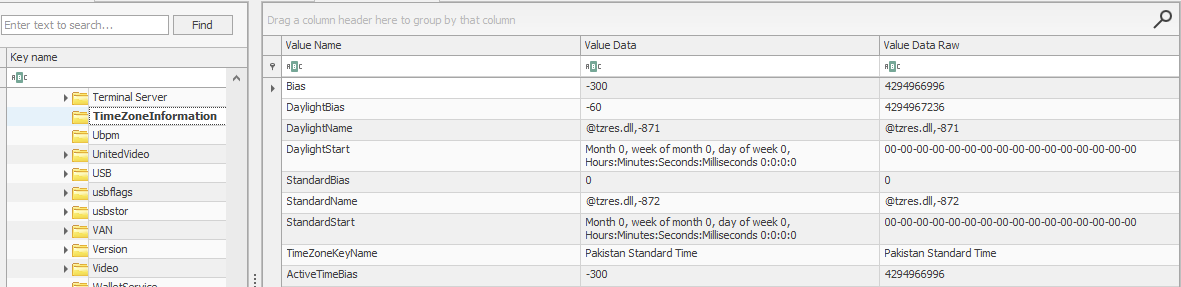
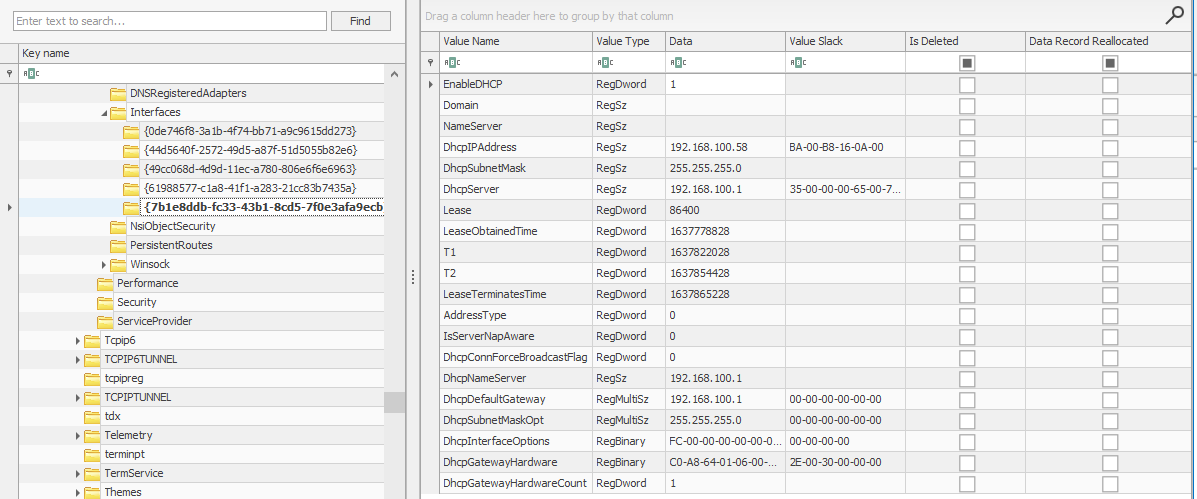


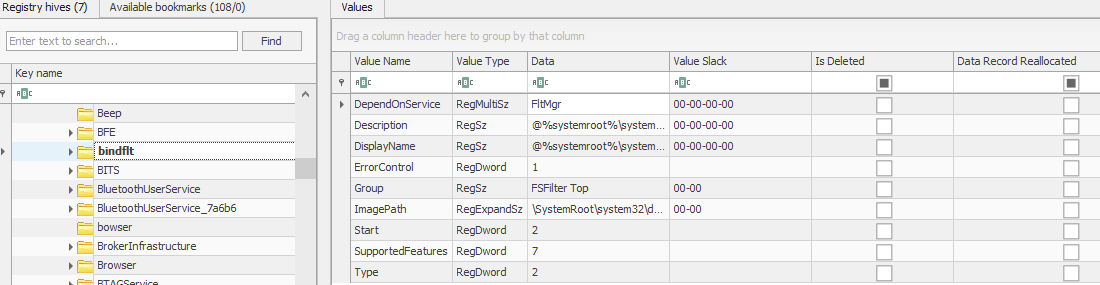
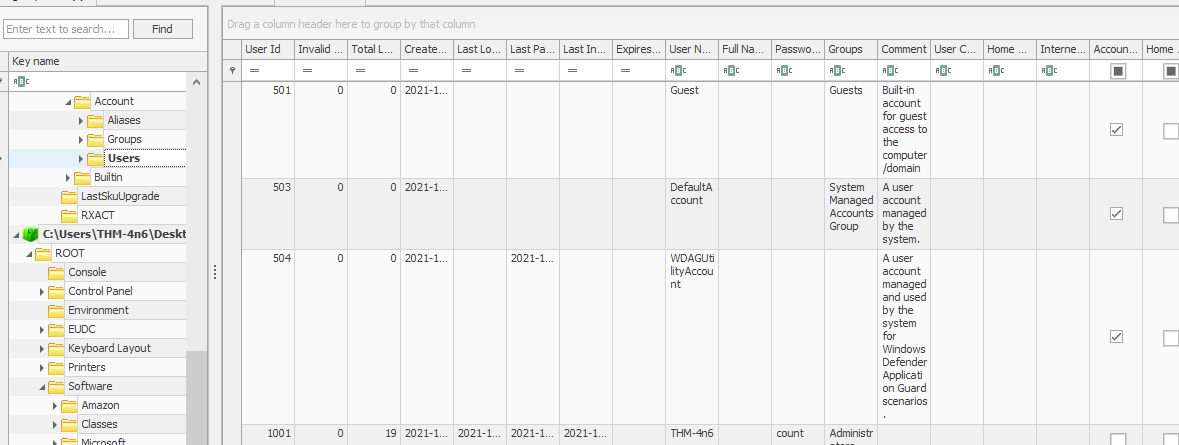
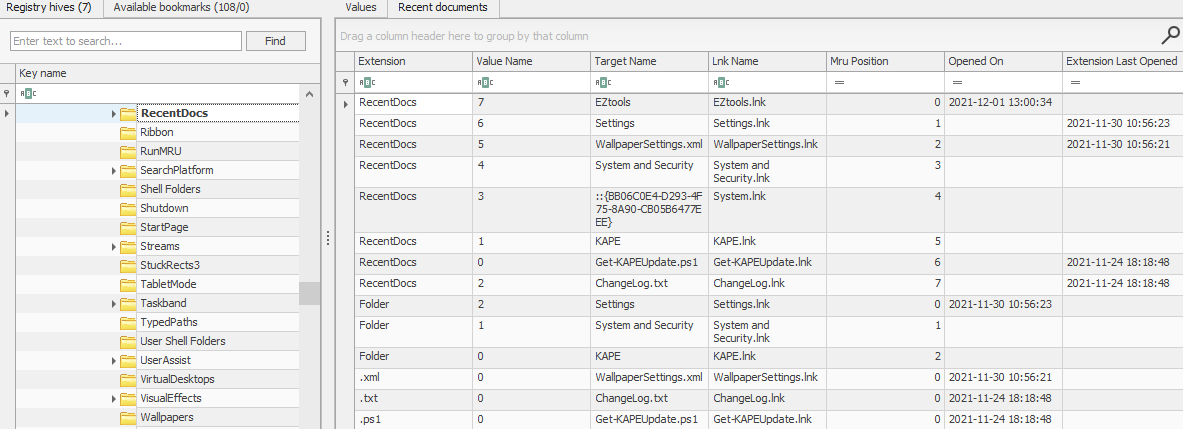
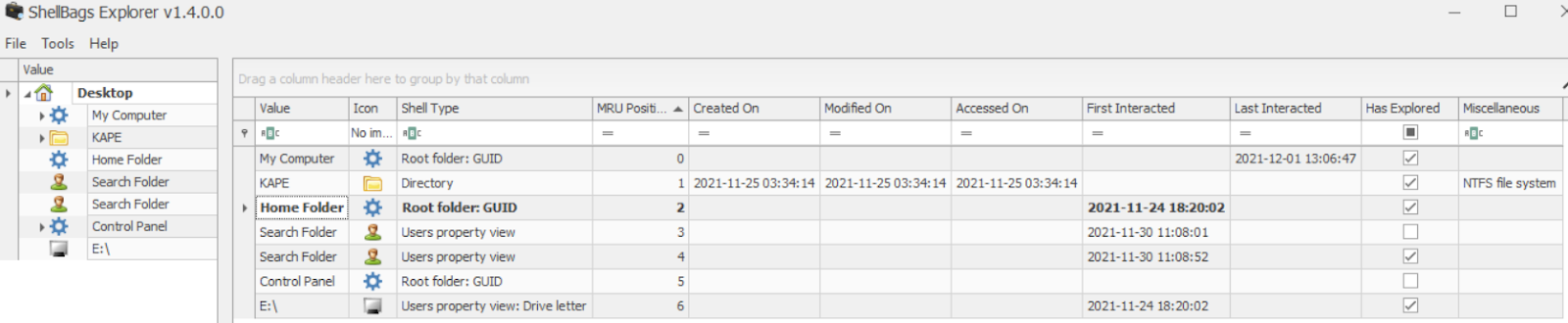


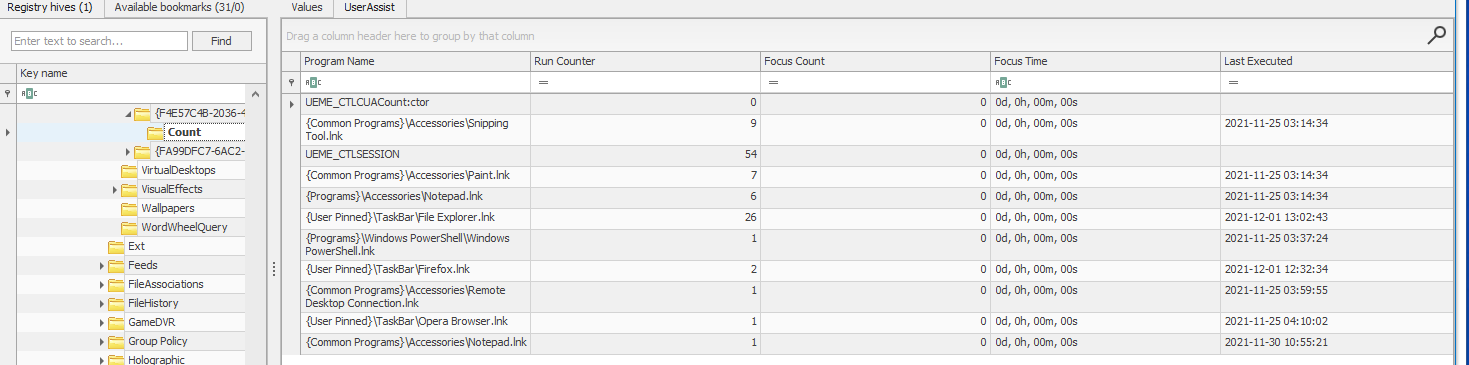

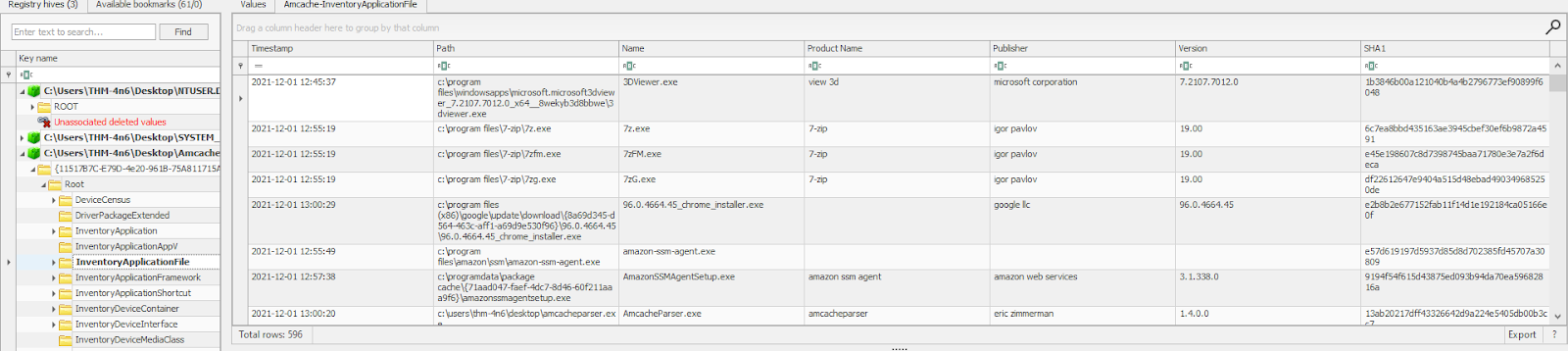
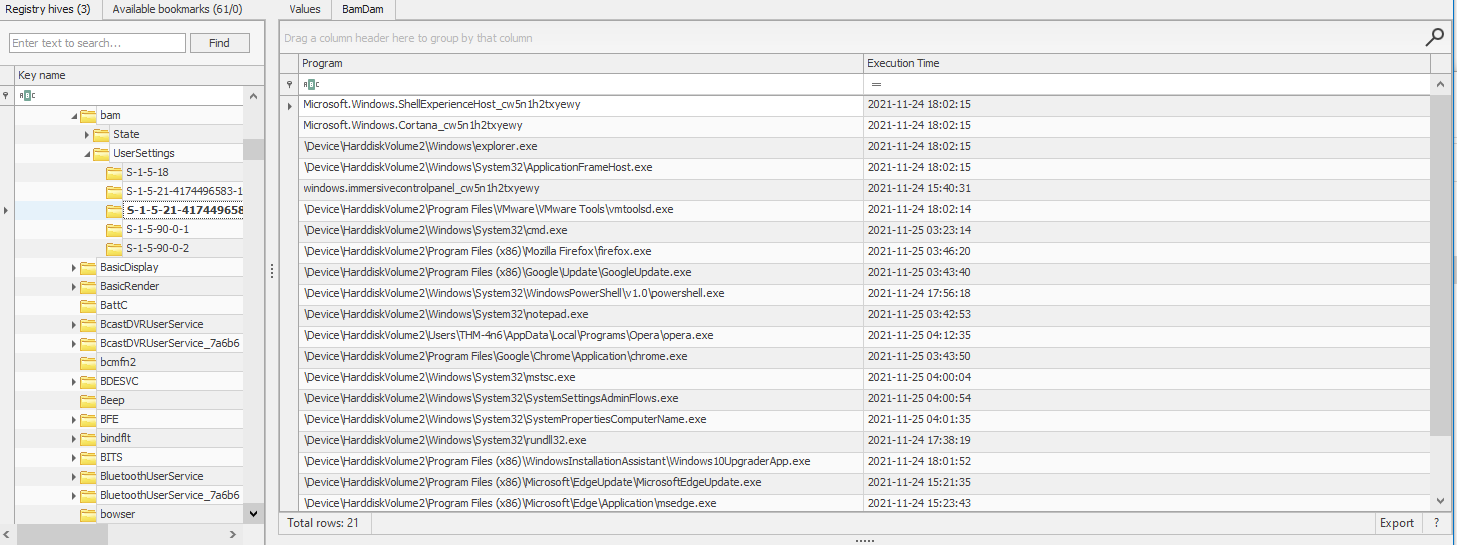

 We can compare the GUID we see here in this registry key and compare it with the Disk ID we see on keys mentioned in device identification to correlate the names with unique devices. Take a look at these two screenshots and answer Question # 3.