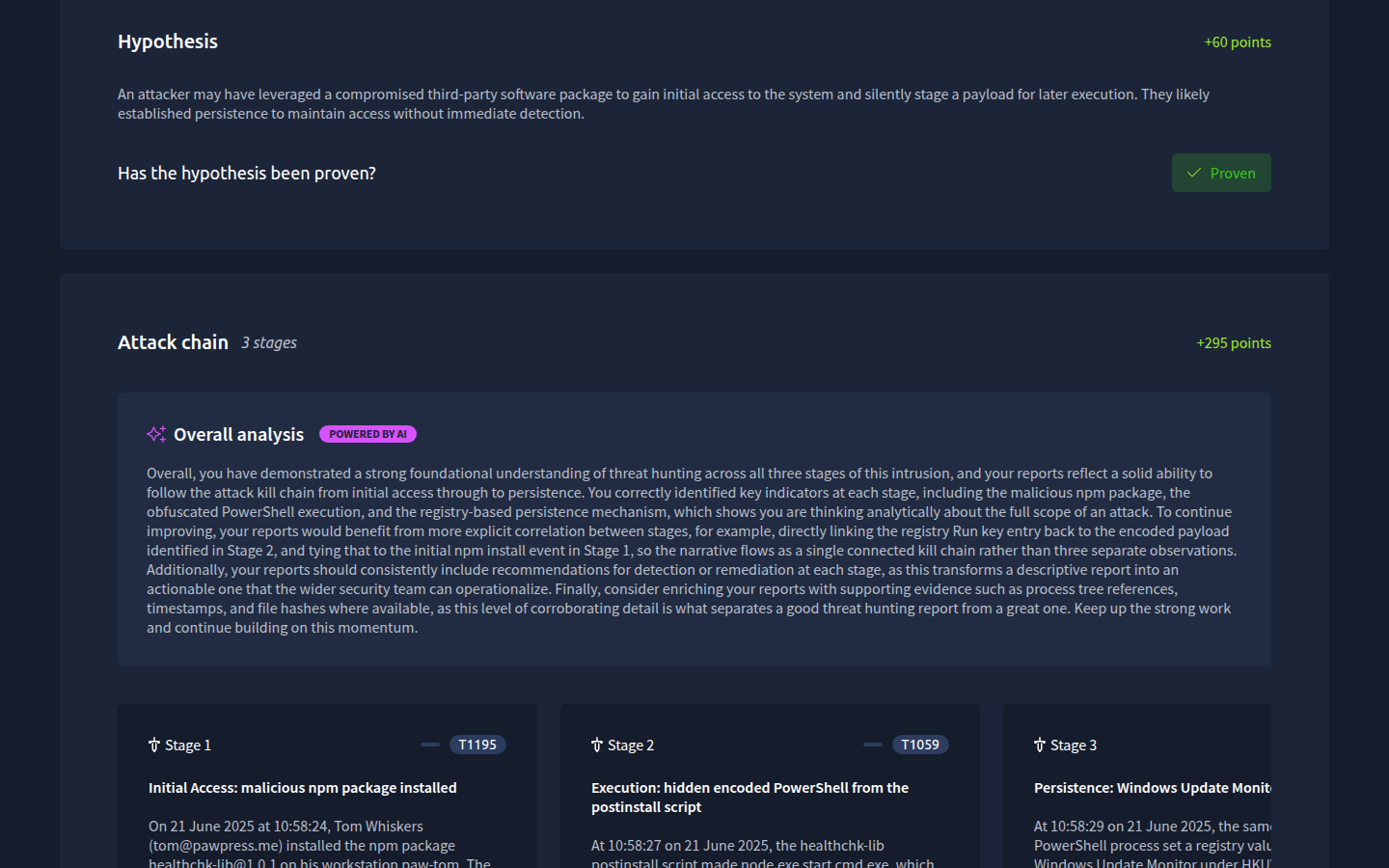
Let's find out how the attacker got in.
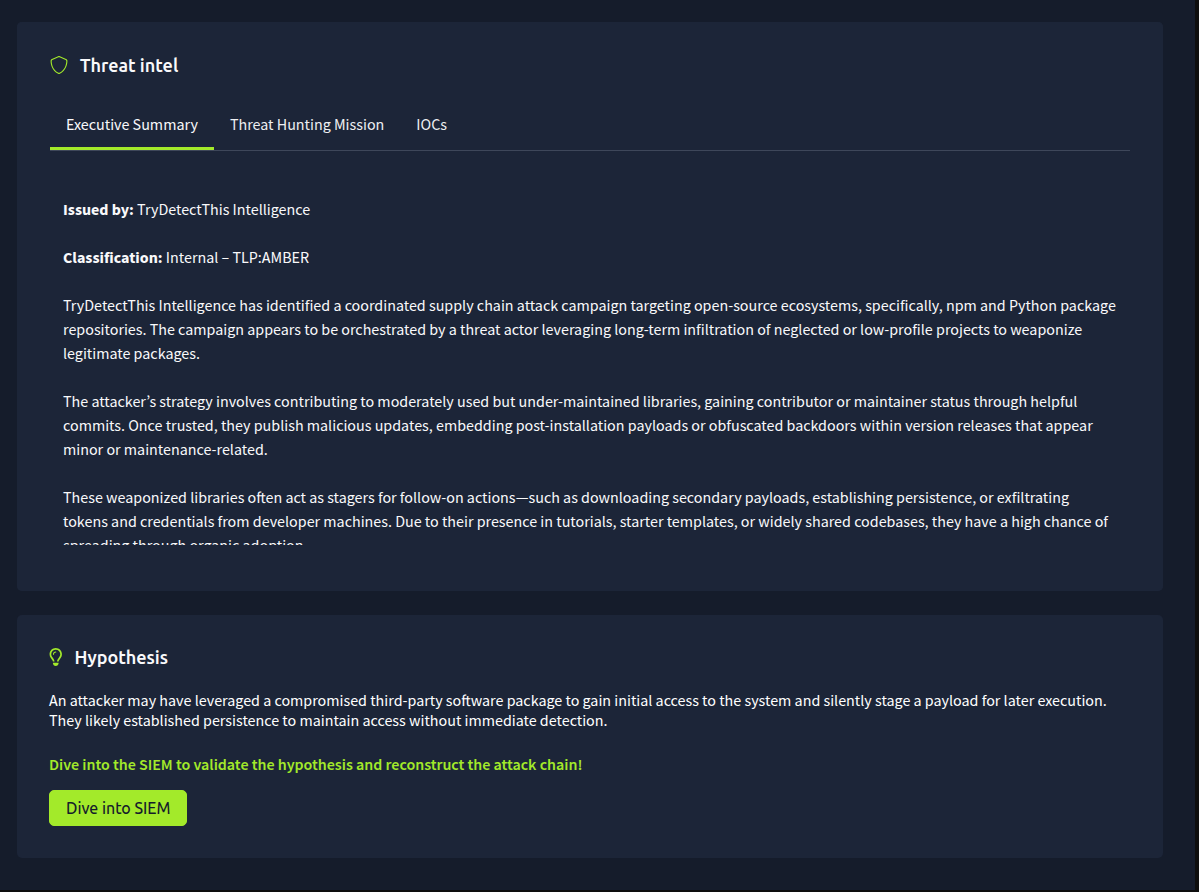
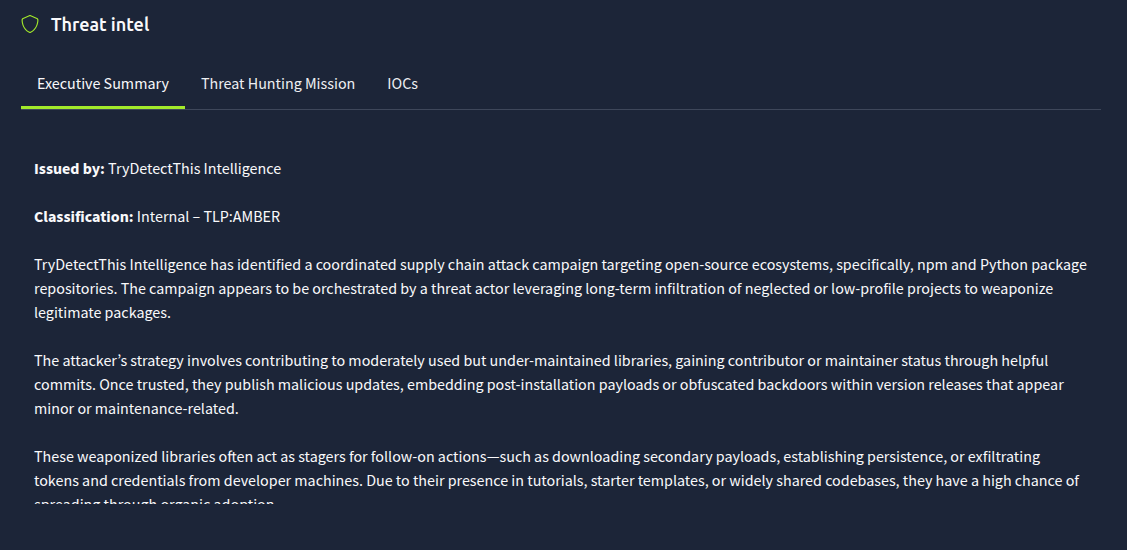
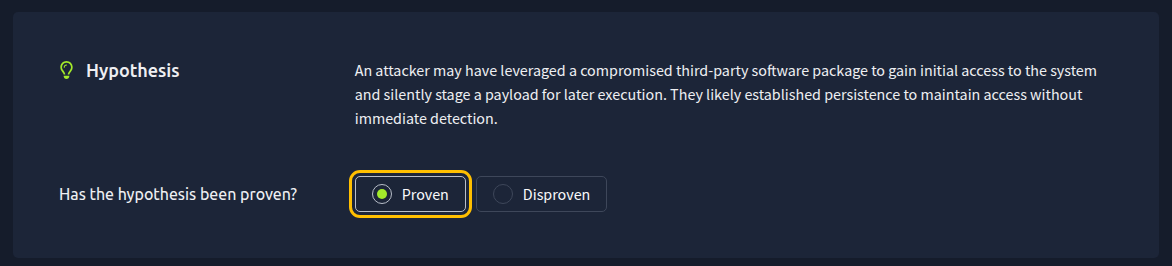
The hypothesis says a compromised software package, and the threat intelligence report gives us a name: healthchk-lib@1.0.1. That's our first thread to pull.
Searching for the Package
In Splunk, with the time range still on All time, search for the package name:
index=* healthchk-lib
The index=* part tells Splunk to look in every index, which is where Splunk keeps its logs. All of this scenario's logs sit in one index, so on its own it finds the same 1,051 events as the * you saw in Task 2. Anything you add after it narrows the search down. Here, healthchk-lib keeps only the events that mention the package.
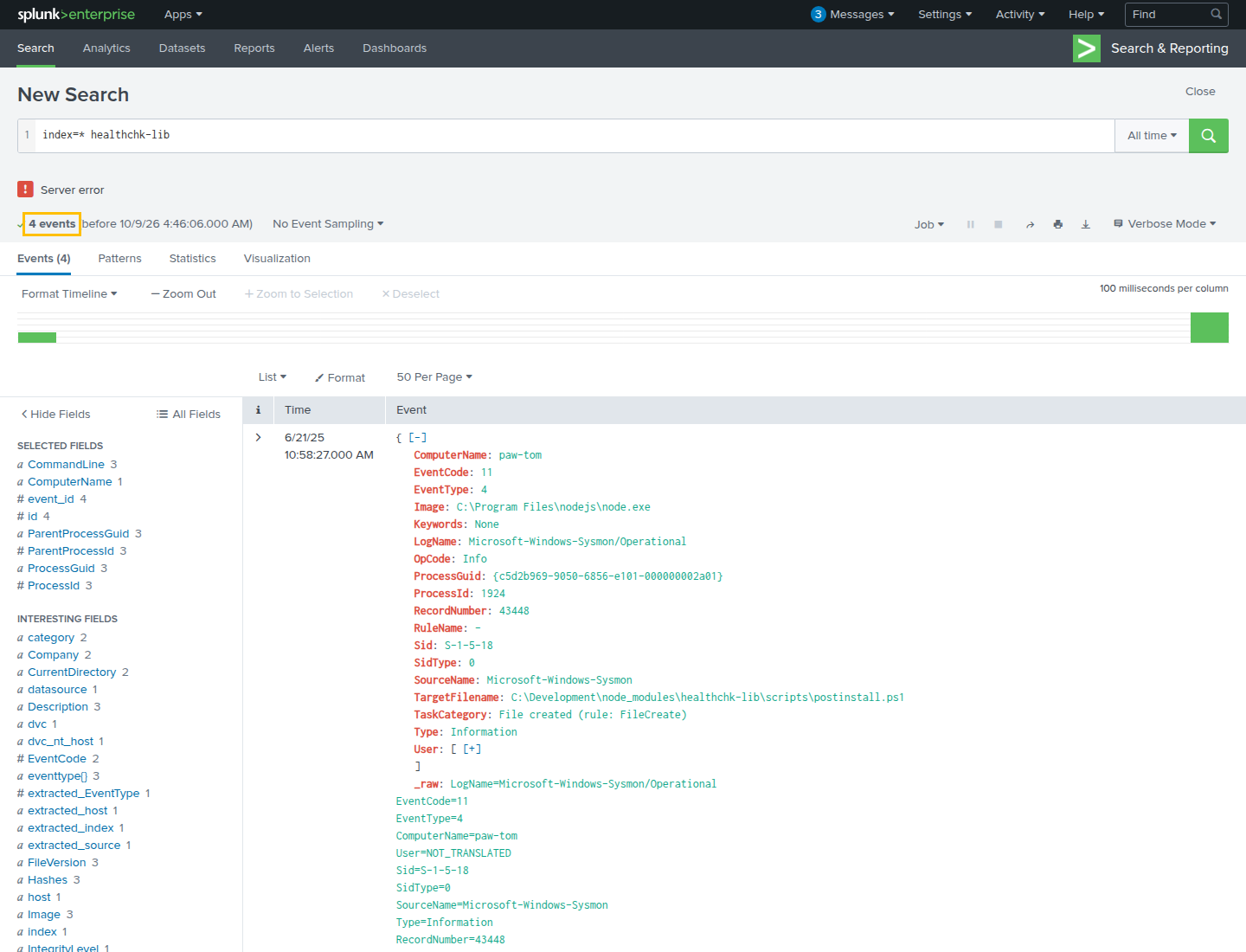
Four events come back, and their ComputerName is paw-tom every time. So far, it's all one machine. Let's start with the earliest one, at 10:58:24 on 21 June 2025. Splunk lists the newest events first, so you'll find it at the bottom of the list. The date is written the American way, so you'll see it as 6/21/25 10:58:24.000 AM.
It's a process start, EventCode 1. Here are the fields that matter:
One thing to watch out for with User. If you click it in the fields list, Splunk shows NOT_TRANSLATED instead of the account name. The account is still in the event, though. In the event's own text, User shows as [ [+] ]. Click the [+] to open it, or check ParentUser, which holds the same account here.
If you've never used Node.js before, here's what that means. npm is the package manager for Node.js. Developers use it to pull in other people's code, called packages, so they don't have to write everything themselves. The command line shows node.exe running npm with install healthchk-lib@1.0.1. In other words, someone opened PowerShell and installed this exact package.
Remember the scenario's description? Tom was following a tutorial to build the company's first website, installing "a few packages" along the way. This is one of them.
What the Package Did Next
Installing a package doesn't sound dangerous on its own. But npm packages can include a postinstall script, a script that runs automatically right after the package is installed. The threat intelligence report mentions it too: it lists the script as found in package.json under "postinstall".
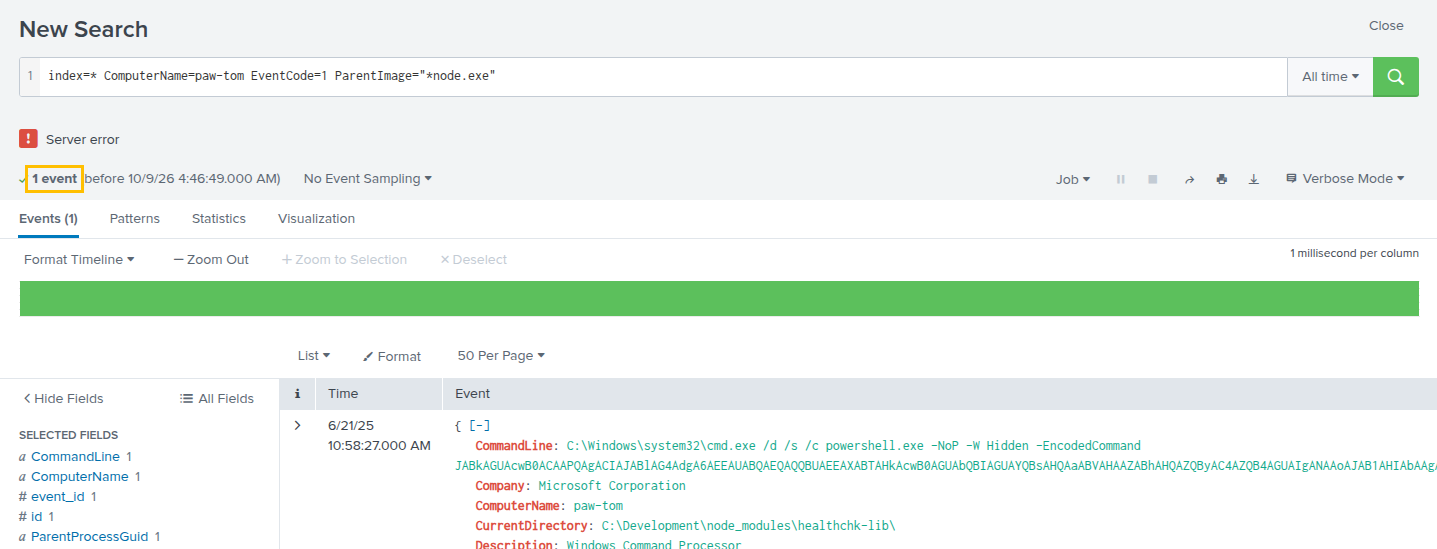
Now look at the other three events. At 10:58:27, node.exe creates a file:
C:\Development\node_modules\healthchk-lib\scripts\postinstall.ps1
In the same second, node.exe starts cmd.exe, and cmd.exe starts PowerShell. Both show up in this search because they ran from the package's own folder, C:\Development\node_modules\healthchk-lib\. You can see it in their CurrentDirectory field. That's the postinstall script kicking in, and we'll follow where it goes in the next task.
Who and Where
The asset is easy. Every one of these events has paw-tom in its ComputerName field.
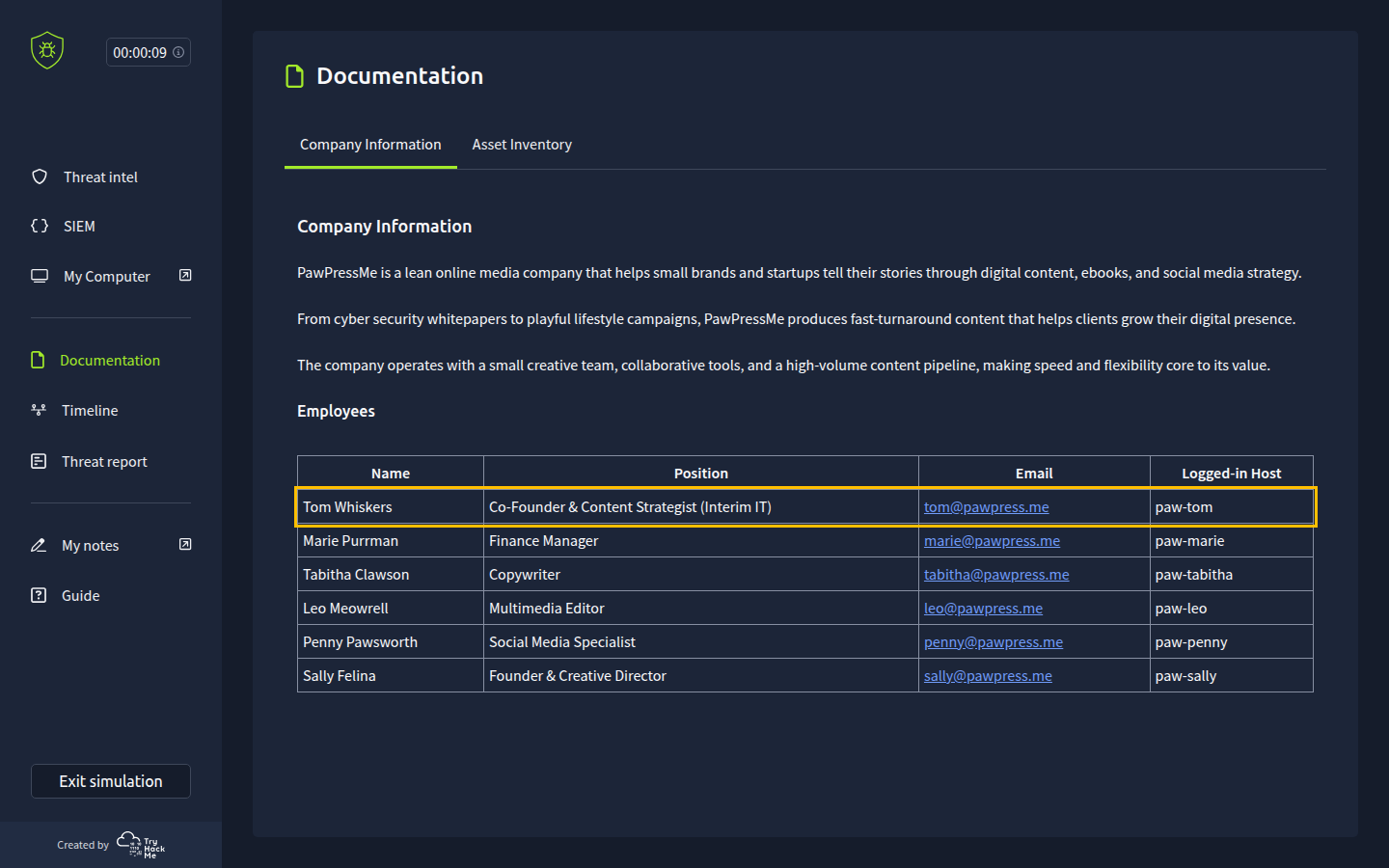
The User field takes one more step. The logs say the account is PAW-TOM\itadmin-tom, but they don't give you a person's name. So go back to the employee table in the Company Information tab. paw-tom is the logged-in host of Tom Whiskers, whose email is tom@pawpress.me. And remember his position, "Interim IT"? That's why his account is called itadmin-tom.
This matters because the stage form doesn't ask you to type the account name. It gives you a list of the company's users by email address, so you need to know which person the account belongs to.
Mapping It to MITRE ATT&CK
So what was the attacker trying to do at this step? Get into the environment for the first time. That's the Initial Access tactic, TA0001.
And how? They didn't break in directly. They poisoned a package that Tom installed himself, trusting it was safe. That's Supply Chain Compromise, T1195. Attackers compromise something earlier in the "supply chain," like a software package, so it reaches the real target through normal use.
Adding the Stage
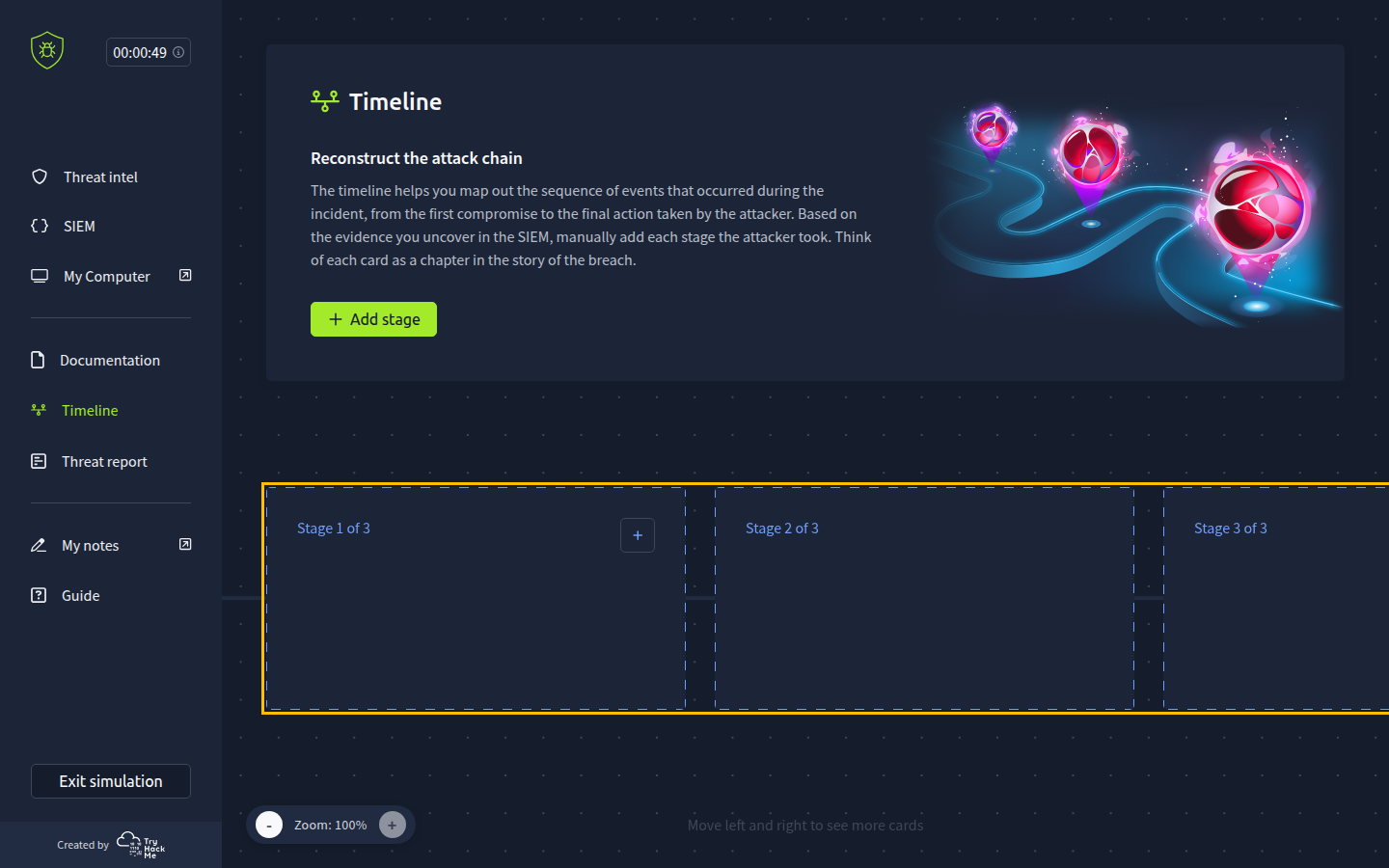
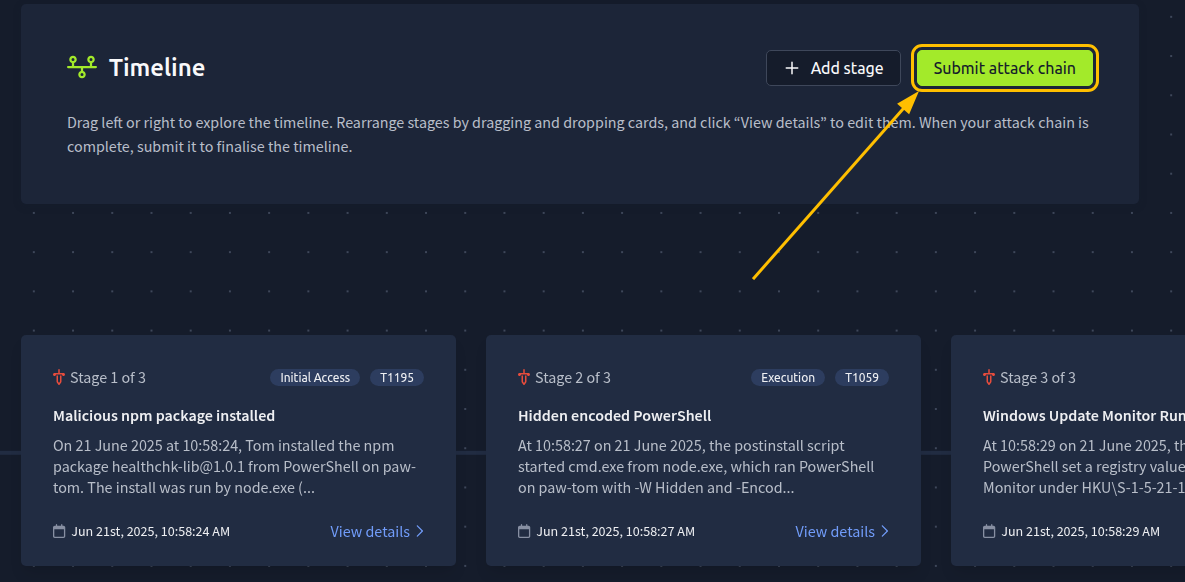
Open the Timeline and click Add stage. The Add Stage form opens on the right.
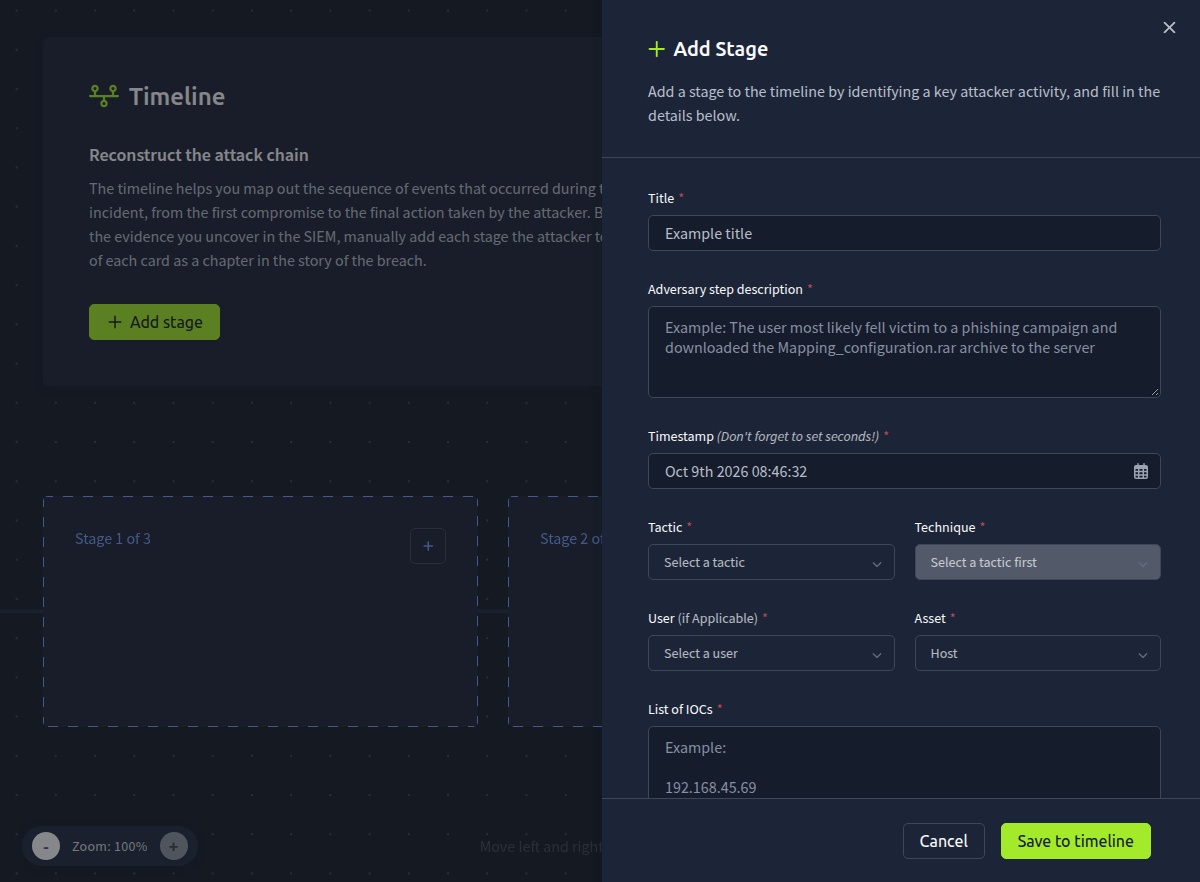
Here's what goes in each field:
The timestamp takes a little care. Click the field, and a calendar opens with today's date selected. Go back to June 2025 and pick the 21st. Then, on the right, pick the time from the Hours, Minutes, and Seconds columns: 10, 58, and 24. You can type the date into the field instead, but the time has to come from those columns. The form even reminds you: "Don't forget to set seconds!"
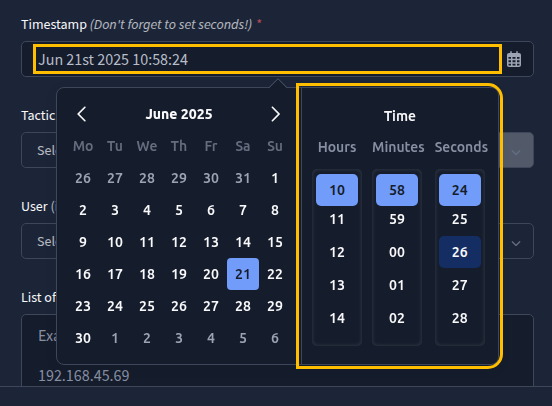
You don't need to convert the time to your own time zone. Use exactly the time Splunk shows.
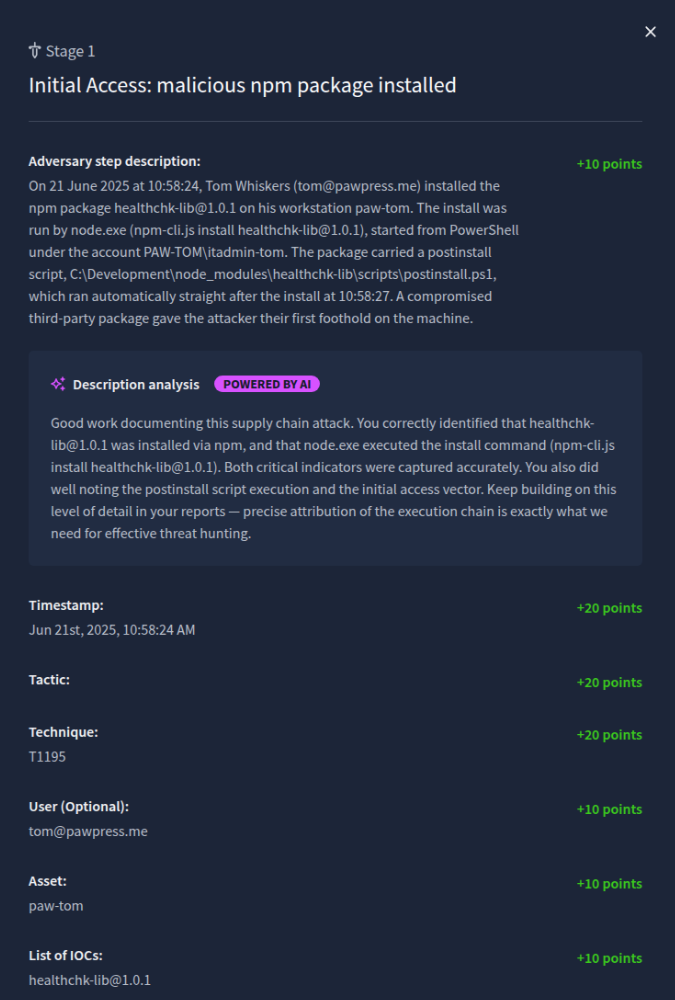
For the description, write what happened in a sentence or two, as if you were explaining it to a teammate.
A simple way to check that your description is complete is to make sure it answers the five Ws:
- Who: the user and the machine involved.
- What: what happened.
- When: the time of the activity.
- Where: where it happened, like the folder, the registry key, or the domain.
- Why: the reason behind it, such as what the attacker was trying to achieve.
Here's a structure you can follow. Fill in the blanks with what you found:
On ______ at ______, Tom installed the npm package ______ from PowerShell on ______. The install was run by ______, and the package dropped a ______ script that started running straight after the install, giving the attacker a foothold through a compromised third-party package.
Write it in your own words if you like. What matters is that someone reading it later would understand exactly what happened at this step.
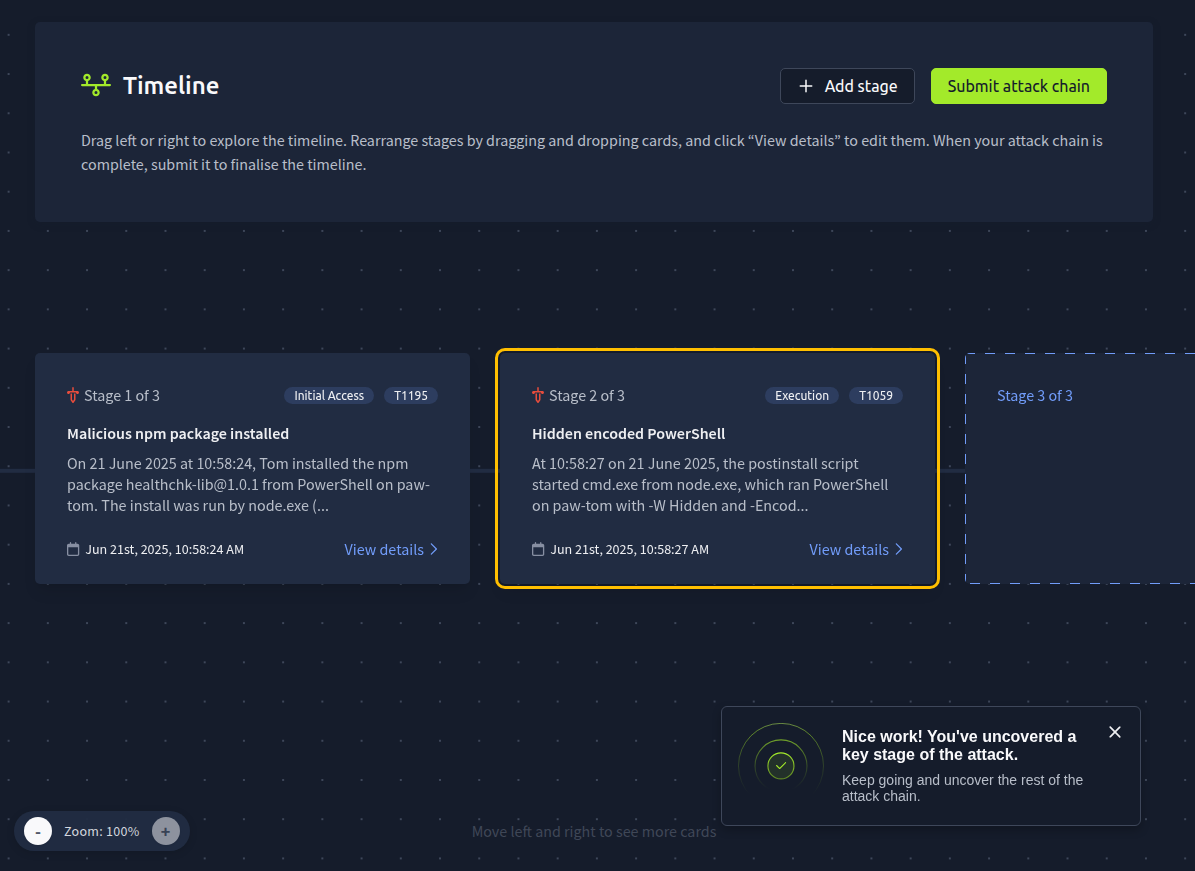
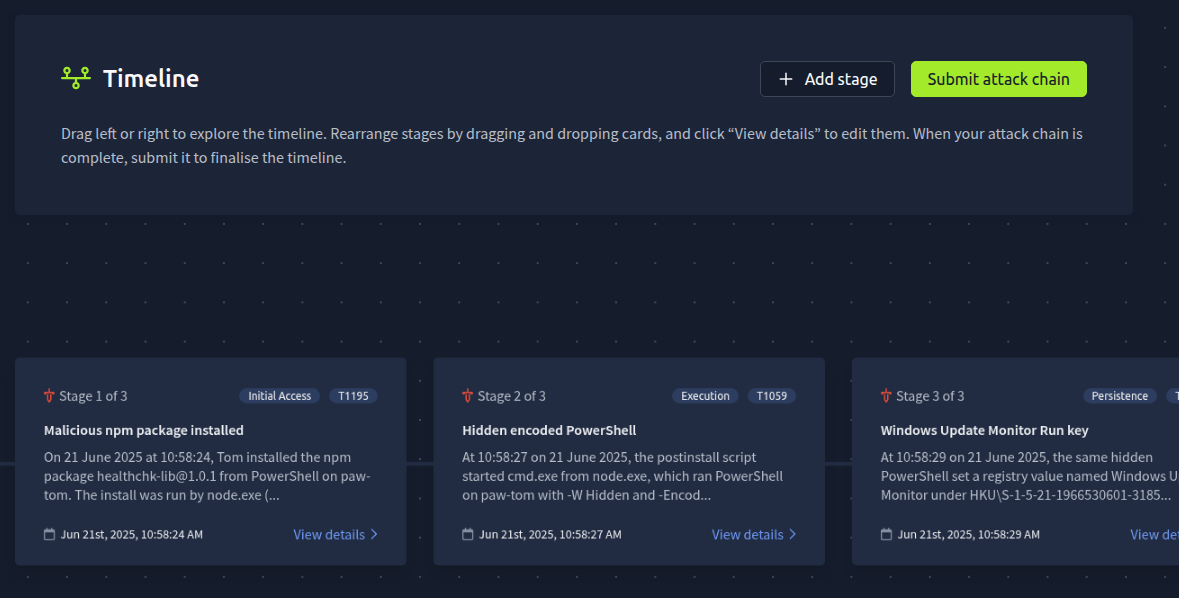
When everything's filled in, click Save to timeline. Your stage appears in the first slot of the Timeline, and a "Nice work!" message pops up.
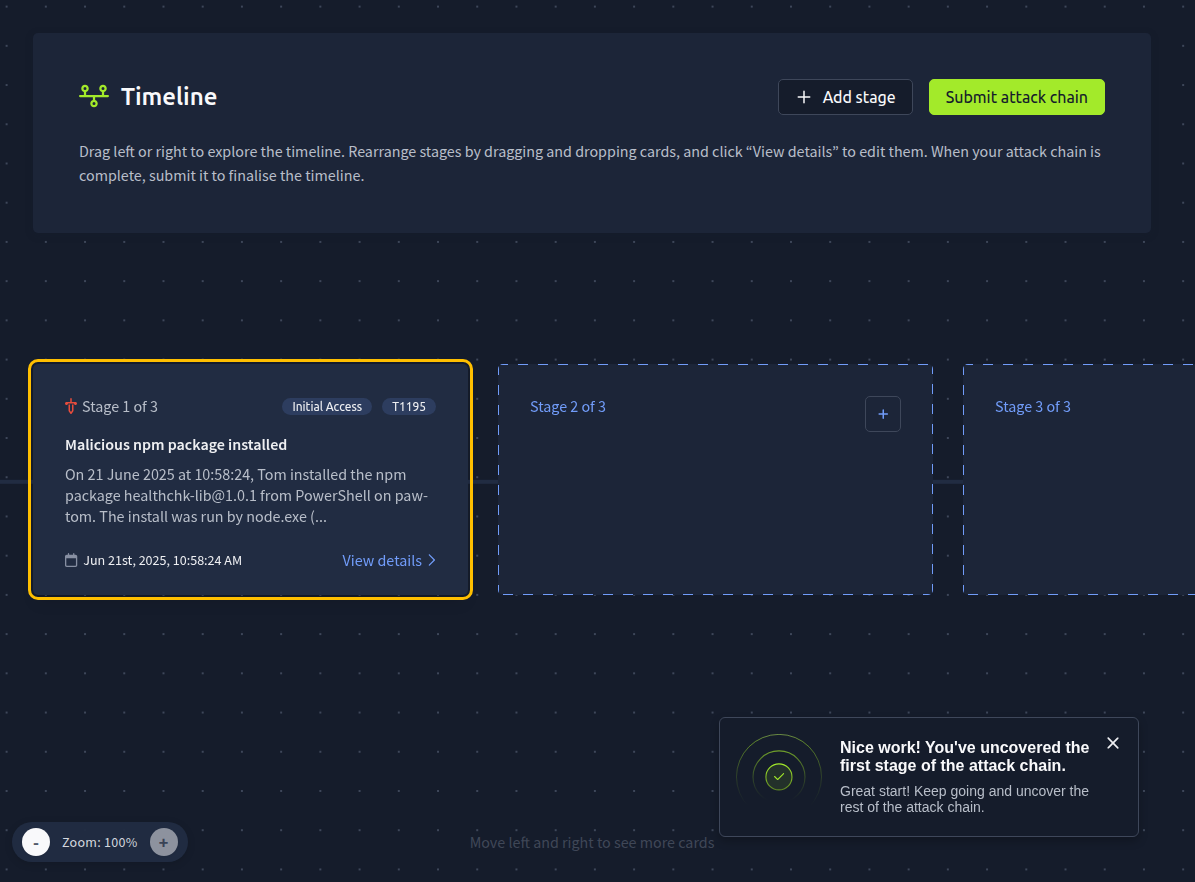
If you spot a mistake later, you can open any stage with View details and edit it.